Epos Software
Epos software to suit your business with all the features
Choose from our advanced or simple Epos software
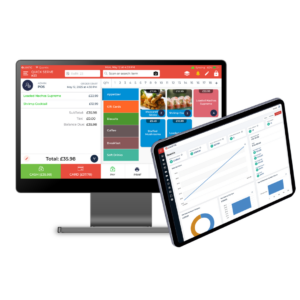
All in one Epos Software
Still using a card machine?
Use your EPOS system to take payments
Features and Functions of our Epos Software
- Table management
- Online Table Reservation
- Appointment booking
- Stock management
- QR code ordering and much more
- Uber eats and deliveroo integration
- App for larger/ smaller screen to transform into payment device
- Takeaway ordering software
From £39 per month
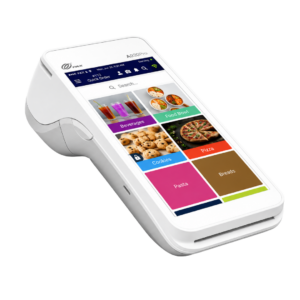
Mobile Epos Software
This software is best for counter service where you need to take orders & payments
Basic Software – Smart Terminal
- Track cash & card sales
- View live transactions
Advanced Software – Quantic Lite
- Product menu
- View live transactions
- Track cash and card sales
- Tab management
From £26 per month
Frequently asked questions
How to access the back office?
myquantic.com
How to access your reports?
On the POS Terminal
- Tap the three menu lines in the top left corner of the screen.
- Select Reports from the side menu.
- Choose the specific view you need, such as daily sales, employee performance, transaction lists, or batch summaries.
On the Back-End Portal
- Log in to your Quantic Back-End Portal on a web browser.
- Look at the main Dashboard for real-time gross/net sales, total orders, and category charts.
- Navigate to the Report section on the left-side menu to view data.
How to batch your transactions ?
Managing Your Batch
- Open Menu: Tap the three horizontal lines on the top left of your screen.
- Select Operations: Choose POS Operations from the menu.
- Go to Batch: Tap on Batch Operations.
- Close Batch: Click Close Batch to settle transactions and print the payment report
How to make pricing changes?
- Open the Back Office Portal on your web browser.
- Go to the Catalog or menu management section.
- Click on the name of the item you want to update.
- Type the new price into the price field.
- Click Save to apply the change.
How to make menu changes?
- Ensure you have backend or portal menu management privileges.
- Open the left navigation menu and select the Catalog section.
- Choose the specific tab for Categories or Items to create or modify entries.
- Click an existing item name to edit its price, name, printer assignment, or color/font settings.
- Set up add-ons by navigating to the Modifiers tab to create modifier groups and options.
How to do a refund?
- Open Quantic POS and tap the menu icon (three lines) on the top left.
- Select Orders and scroll to/tap Closed Orders at the bottom.
- Retrieve and tap the specific sale or reference number you want to change or refund.
- Tap the Refund or Return button on the bottom bar.
- Choose a Full Refund or select specific item quantities for a Partial Refund.
- Select whether to print or send the receipt confirmation
How to create different pins for staff members?
Accessing Staff Settings
- Log in to your Quantic Back-End Portal.
- Open the left navigation menu.
- Click on Employees.
Changing or Adding a PIN
- Select the specific staff member from the list.
- Click the Edit button in the top right corner.
- Locate the PIN or security code field in the profile/information settings.
- Type a new, unique 4-digit number for that specific employee.
- Click Save to update the system.
- Sync your POS terminal so the new PIN activates immediately.